


Site Health helps Site Owners verify whether Jyavani Core and extension files still match trusted baselines while reviewing the safety of media and site-owned files. Its result is a diagnostic snapshot from the latest scan, not antivirus protection or real-time security monitoring.
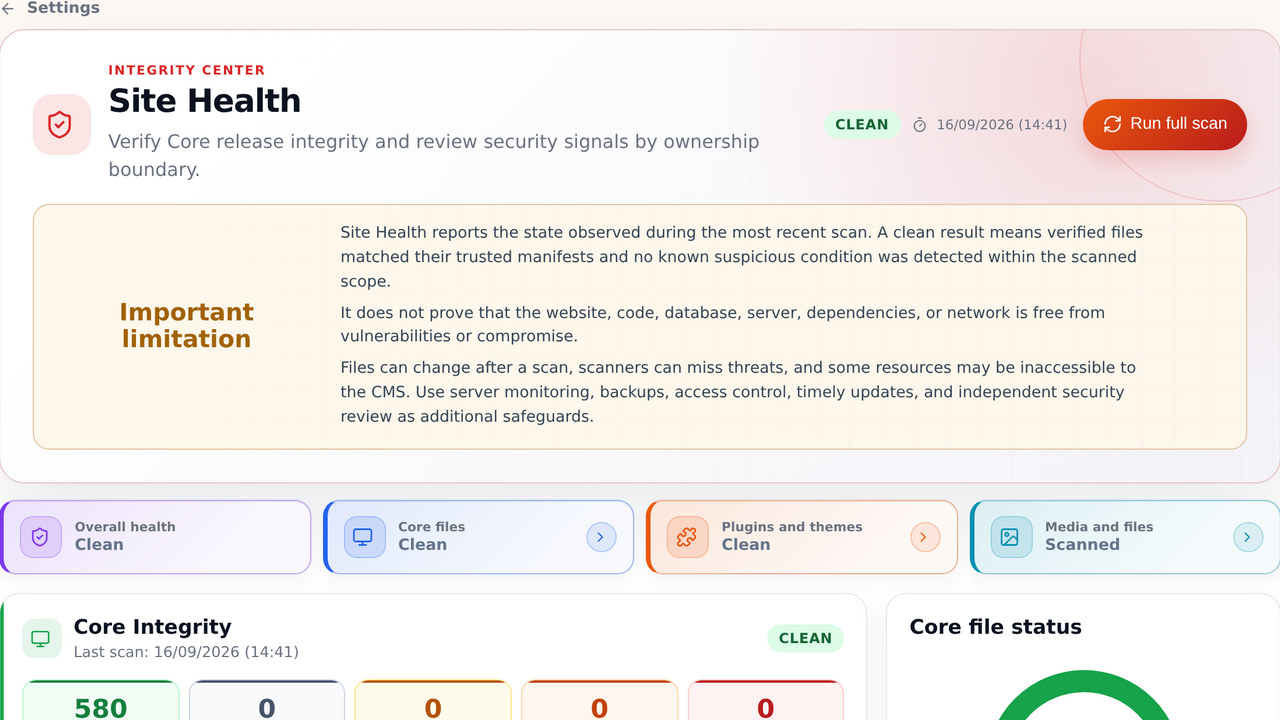
Opening and running a scan
Open Settings > Site Health. The Run full scan button performs a manual check and displays a new report when the process finishes. Avoid running it while a Core, plugin, or theme update is in progress.
The dashboard can also request an automatic scan when no report exists, the report belongs to another Core version, or it is at least one hour old. This request uses a separate POST endpoint after permission, Site Owner, and CSRF checks. Dashboard and widget rendering remain read-only; file hashing does not run inside a normal page request.
Automatic requests are browser-throttled and freshness is checked again after the scan lock is acquired, preventing concurrent dashboard loads from creating a scan queue. This mechanism is opportunistic, not a server scheduler: a site without Site Owner dashboard activity still needs host monitoring or its own managed schedule.
Reading the summary
- Check the scan time, baseline version and source, and whether the report completed without errors.
- Compare the Core files, Plugins and themes, and Media and files statuses separately.
- Open a findings panel to review relative paths, reasons, and expected and observed hashes when available.
- Use status filters and search to distinguish changed files from unexpected artifacts.
The Site Health home widget only reads the stored report. It shows the percentage of clean Core files, the number of integrity findings, component statuses, and the latest scan time. Integrity findings are not a count of confirmed vulnerabilities.
Understanding the five statuses
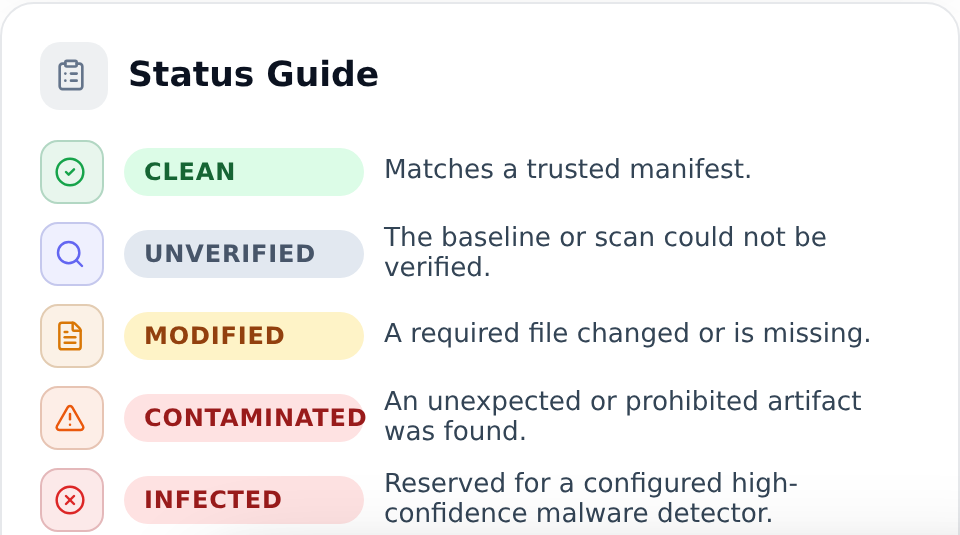
clean: every file required by a trusted baseline matches and no prohibited artifact exists within the component scope.unverified: no trusted baseline is available, provenance cannot be established, the scan did not complete, or a resource could not be read.modified: a manifest-owned file is missing, its hash differs, or its safe file type does not match the release identity.contaminated: a managed area contains an unexpected or prohibited artifact, such as executable code, a symbolic link, a special file, or a file crossing an ownership boundary.infected: a high-confidence detector identifies malicious content and provides its detector identity and evidence category.
A modified status does not prove malware; a legitimate local edit still differs from the release package. A contaminated status requires review but does not automatically mean infected. Jyavani currently has no configured malware engine; infected is reserved for a future high-confidence detector.
Core Integrity and release baselines
Core Integrity compares managed files with the HTTPS manifest for the exact installed Jyavani version. The scanner validates paths, file counts, and SHA-256 hashes, then reports missing, changed, or unexpected files. The local manifest is useful installation metadata, but it cannot be the sole trust root because an actor able to change Core may also be able to change that manifest.
The scanner does not compare an older installation with the latest release manifest. Update status and file integrity are separate concerns. If the canonical manifest for the installed version is unavailable, invalid, or mismatched, the Core component remains unverified; other findings remain visible for review.
A deployment may record expected non-executable public assets and local tools owned by the site in cfg/site-files.json. Matching hashes establish an ownership boundary so those files are not treated as foreign Core files. This manifest is not a release trust root: changed hashes, symbolic links, special files, Core runtime paths, and public executable files still fail closed.
Plugins and themes
Using an official plugin hook does not modify Core files. Canonical Store plugins and non-system themes are verified against the HTTPS manifest for their exact installed version. A matching tree can be clean; missing or changed release files become modified; unexpected or unsafe artifacts become contaminated.
A local extension without Store provenance can use an Ed25519 signed deployment manifest installed by the operator. The Store baseline always takes precedence; an extension claiming Store identity cannot fall back to a local baseline when the canonical manifest fails. The .store.json file is updater metadata and grants no trust, while any .git directory or file is prohibited in an extension tree.
A plugin may declare up to eight runtime-generated public image directories inside static/plugins/{folder}/. These images are not compared with release hashes, but remain bounded by count, size, extension, MIME, executable-looking name, file type, and symbolic-link checks. Packaged plugin files and copied static assets must still match the Store manifest.
Media and site-owned files
Media and site-owned files are not compared with the Core manifest. The scanner checks containment, file type, symbolic links, executable or server-configuration content in upload locations, double extensions, and image MIME consistency. Ordinary files can receive the scanned status; this means the available checks completed, not that the files are guaranteed malware-free.
The report must not expose private file contents, absolute deployment paths, hidden administration routes, credentials, or user data. It may show only relative paths and finding metadata needed for diagnosis.
Following up on findings
- Compare the scan time with the latest planned change or update.
- For changed Core files, use a verified package and the official update or reinstall workflow after creating a backup.
- Manage plugins and themes through their own lifecycle operations; do not delete files directly from the findings table.
- Review deployment-owned files against an approved hash before updating
cfg/site-files.json. - Preserve suspected artifacts for operator review or a purpose-built quarantine process.
- Run another scan after remediation to create a new snapshot.
Limits of a clean result
A clean result means verified files matched trusted manifests and no known suspicious condition was found within the scanned scope. It does not prove that the code, database, server, dependencies, network, or website is free from vulnerabilities or compromise. Files can change after a scan, and scanners can produce false positives or false negatives.
Site Health currently stores one report; history, export, notifications, scheduled scans, environment panels, and a quarantine workflow are not yet available. Use Site Health alongside tested backups, least privilege, timely updates, server monitoring, file-system auditing, host malware scanning, and independent security review.